Creating And Editing Fault Definitions
When a Fault is logged against an item, the fault type must be selected
from a predefined list of Fault Definitions. These Fault Definitions may
include faults such as ‘Brakes Faulty’, if referring to a vehicle, or
‘Cracked Screen’ if referring to a Laptop, and any other fault that could
occur to any type of item in your system.
NOTE:
To create Fault Definitions the user must first have the correct Software
Permissions. Refer to the Fault Logging Software
Permissions section for
more details.
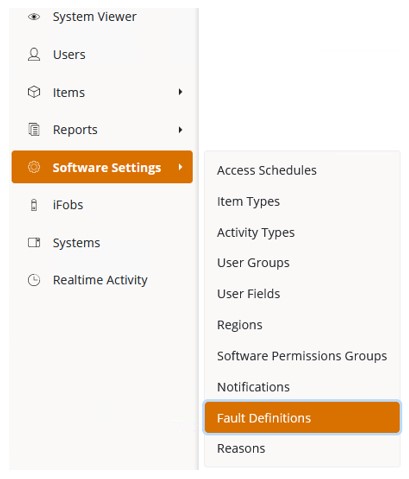
To create a Fault Definition, select ‘Software Settings>Fault
Definitions’ from the Navigation
Menu.
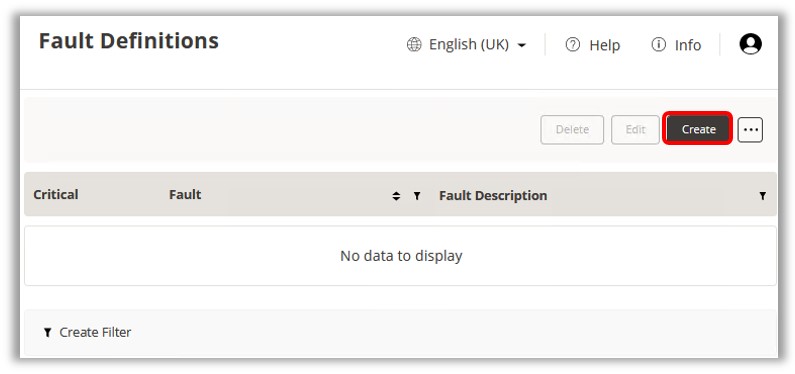
Click the Create button
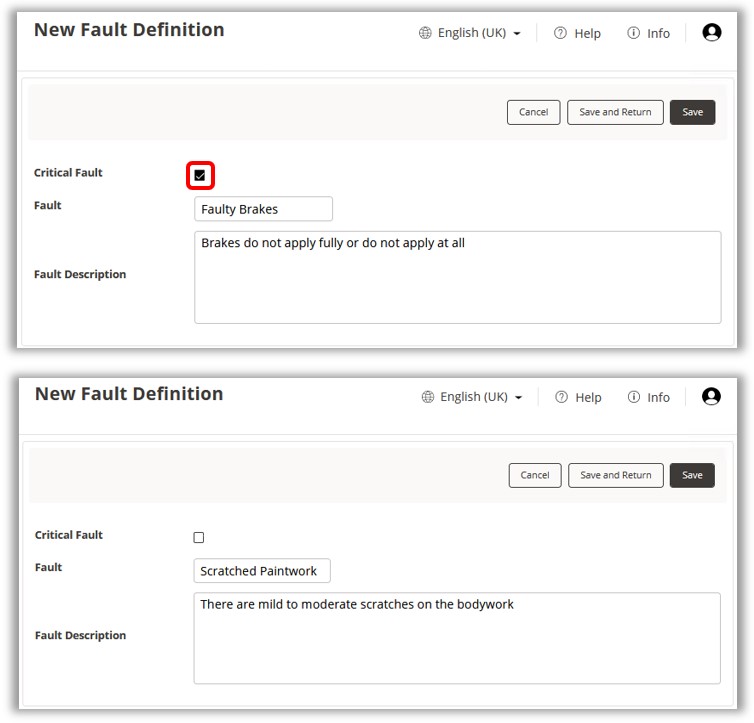
and the Fault Definition Details window will appear. From here, you
can define a name and any additional description for the fault.
You can also select whether or not the fault is a ‘Critical Fault’.
A Critical Fault, once logged against an item, restricts that item
from being removed from the system unless the user has specific permissions.
See the section Define
Users That Can Take Critically Faulted Items for further details.
The following 2 images show examples for the creation of Critical and
non-critical Fault Definitions.
Once you have finished creating the Fault Definition click ‘Save’.
You can repeat this process for all Fault Definitions you wish to
create.
To enable the Fault Definitions to be selectable when logging a fault
against an item, they must be assigned to an item type. Refer to the section
Selecting Fault
Definitions for Item Types for more details.
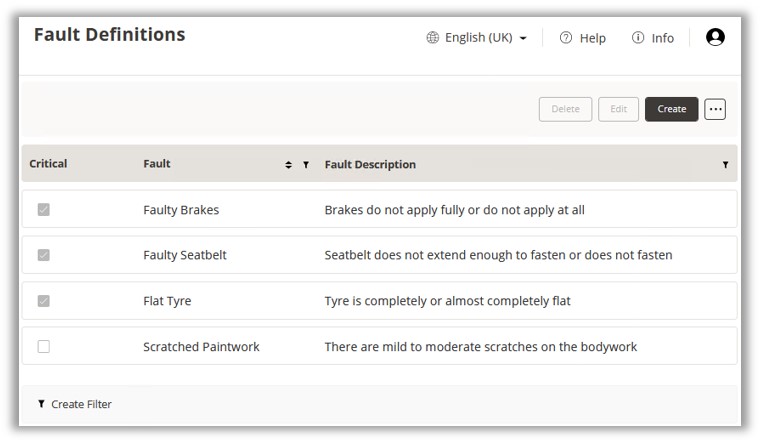
All the Fault Definitions created will be stored in the Fault Definitions
List. To access the Fault Definition List, select ‘Software Settings>Fault
Definitions’ from the Navigation Toolbar.
From here, you can Edit, Delete, or Create new
Fault Definitions.
NOTE:
If a user has removed an item from the system that has a ‘normal’ fault,
and that fault definition is then changed to ‘Critical’ in TrakaWEB, the
Event Report will look like the user removed a critically faulted item
without the correct permissions (if that user does not have permission
to remove critically faulted items). It is best to edit the ‘Critical’
status of a Fault Definition when no items currently have that fault logged
against them. To check all current outstanding faults, refer to the
Outstanding
Faults List.